
Description
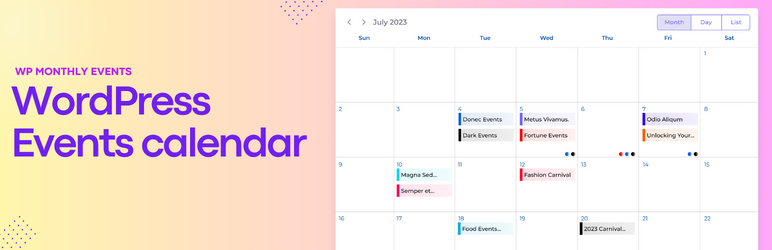
Monthly Events Calendar is a lightweight events calendar for WordPress. Add your events, drop the calendar on any page, and visitors can browse them by month, as a list or day by day, then add them to their own calendar in one click.
Already keep your events in Google Calendar, Outlook or Apple Calendar? Paste the calendar link and they appear on your site. Want your community to add events? Put the submission form on a page and approve what comes in. Moving from The Events Calendar? Your events show up right away.
Everything below is free.
👉 Live demo · Documentation · Support forum
Three calendar views
- Month – a classic monthly grid. Hover or tap an event to see its time, place, image and description.
- List – events in date order, with times, venues and descriptions.
- Day – a timeline of the day plus a list of that day’s events.
- Visitors switch views and months with one click, and can search events. You choose the default view.
Let people submit events (new in 1.8)
- Add the Submit an Event block or the
[wp_monthly_events_submit]shortcode to any page. People enter the title, description, date and time, venue, category, website and an image. - You choose who can submit under Events Calendar Submissions: the user roles you pick, or visitors without an account, who give their name and email.
- The new Event Submitter role is for people who should only submit events. They can log in and use the form, but can’t open the WordPress dashboard. Roles added by membership plugins can be chosen too.
- Nothing appears until you approve it. New events wait as Pending. You get an email with Approve and Reject links, and people are emailed when their event is published. Roles you trust can publish without approval.
- Spam protection without a CAPTCHA: a hidden field, a timing check and a limit on events per hour. No outside service is used.
- The form follows your theme’s fonts, colours and buttons, works without JavaScript, and adds about 12 KB to the page it is on (4 KB compressed).
- Use another form plugin if you prefer: Gravity Forms, WPForms, Formidable Forms or your own code can create events with one function,
ecwp_submit_event().
Import from Google Calendar, Outlook and Apple Calendar
- Paste a calendar link from Google Calendar, Outlook.com / Microsoft 365, Apple iCloud or any app with an iCal (.ics) or webcal feed, or upload an .ics file.
- Times, timezones, all-day events, locations and descriptions come across. Venues are created for you.
- Repeating events are added date by date (12 months ahead), including skipped and moved dates.
- Put each calendar’s events in their own category and colour.
- Sync now brings in changes any time. Nothing is ever duplicated, and events you edit or delete on your site stay the way you left them.
Switch from The Events Calendar
- Turn on Monthly Events Calendar and your existing The Events Calendar events show on your calendar straight away. Nothing is imported and nothing is changed in The Events Calendar.
- When you’re ready, Events Calendar Switch from TEC copies categories, venues, organizers and events, keeping their slugs, featured images and Rank Math / Yoast SEO settings.
- Old /event/ addresses redirect to the new events, so your links and search rankings carry over. Pages using the [tribe_events] shortcode keep working.
Everything an event needs
- Start and end date and time, or an all-day option.
- A timezone for each event. Visitors see times in their own local time.
- Venues with address, and organizers with phone, email and website.
- Categories, tags, featured image, event colour and a website link.
- A clean event page with all the details and an Add to Calendar button for Google Calendar, Apple, iCal, Outlook.com, Yahoo, Microsoft 365 and Teams.
- An /events/ archive, plus category and tag pages, all showing the calendar.
- Event structured data (schema.org) on the pages of events that have a venue, so search engines can show the date and place.
Fast and private
- The calendar’s scripts and styles load only on pages that show a calendar or an event. The rest of your site loads nothing from this plugin.
- Small: the Add to Calendar code loads only on event pages.
- Fonts are served from your own site. No requests to Google Fonts or other outside services.
Works with your site
- Block (“Monthly Events Calendar”) and shortcode:
[wp_monthly_events], or[wp_monthly_events view="list"](month, list or day). - One category per calendar:
[wp_monthly_events category="music"], or the block’s Category setting. Useful for a page per imported calendar. - Works with classic and block themes (like Twenty Twenty-Five), and in Elementor, Divi, Beaver Builder, Avada, WPBakery, Bricks and any builder that accepts shortcodes.
- Accessible: screen-reader labels, keyboard-friendly navigation and WCAG 2.1 AA colour contrast, checked with automated accessibility tests.
- Translation ready, including Loco Translate.
- Mobile friendly.
For developers
- REST API:
/wp-json/ecwp/v1/events, andPOST /wp-json/ecwp/v1/submissionsto submit an event. - Submit an event from code:
ecwp_submit_event( $args ). Check permission withecwp_user_can_submit_event(). - Submission filters:
ecwp_can_submit_event,ecwp_submission_fields,ecwp_submission_data,ecwp_submission_errors,ecwp_submission_status,ecwp_submission_spam_check,ecwp_submission_email. - Submission actions:
ecwp_event_submitted,ecwp_submission_approved,ecwp_submission_rejected,ecwp_submit_form_start,ecwp_submit_form_end. - Other filters:
ecwp_event_schema,ecwp_load_assets,ecwp_load_fonts,ecwp_admin_assets,ecwp_ical_parse_args,ecwp_ical_event_postarr. - Other actions:
ecwp_enqueue_assets,ecwp_ical_imported,ecwp_ical_synced. - Sync a saved calendar from code (for example on a schedule) with
Ecwp_Ical_Importer::sync_source( $id ).
Screenshots


Blocks
This plugin provides 2 blocks.
- Monthly Events Calendar Display the Monthly Events Calendar.
- Submit an Event A form that lets visitors send events to your calendar.
Installation
- Go to Plugins Add New Plugin, search for “Monthly Events Calendar”, then click Install Now and Activate.
- Add events under Events Calendar Add new Event, or import them under Events Calendar Import Calendar.
- Add the Monthly Events Calendar block to a page, or paste the shortcode
[wp_monthly_events]. - Optional: under Events Calendar Settings, choose the default view, date and time format, timezone, and whether event links open in a new tab.
- Optional: to let people send you events, add the Submit an Event block (or
[wp_monthly_events_submit]) to a page and choose who can submit under Events Calendar Submissions.
Your events are also shown automatically at yoursite.com/events/.
FAQ
-
How do I show the calendar on a page?
-
Add the “Monthly Events Calendar” block, or paste
[wp_monthly_events]into the page. To open a different view first, use[wp_monthly_events view="list"]orview="day". -
How do I show only one category?
-
Use
[wp_monthly_events category="music"], with the category’s slug, name or ID. Separate several categories with commas. In the block, choose the category in the block settings. -
Can visitors add their own events?
-
Yes. Add the “Submit an Event” block or the
[wp_monthly_events_submit]shortcode to a page. Under Events Calendar Submissions, choose which user roles can submit, or allow visitors without an account. Submitted events wait for your approval, unless you let a role publish straight away.To leave fields out of a form, use
[wp_monthly_events_submit hide="timezone,website"](description, timezone, venue, category, website, image). To put every event from a form in one category, addcategory="music". -
How do I approve a submitted event?
-
You get an email with Approve and Reject links. You need to be logged in to use them. You can also go to Events Calendar All Events Pending and click Approve or Reject under the event, or open the event and publish it. Rejected events go to the trash.
-
How do I let members submit events?
-
Give them the Event Submitter role, or tick their role under Events Calendar Submissions. To give Event Submitter to everyone who registers, choose it as the New User Default Role under Settings General. Membership plugins that give members a role work the same way: tick that role.
-
How does the submission form stop spam?
-
It has a hidden field that only automated tools fill in, it refuses forms that visitors send the instant the page loads, and it limits how many events one person can send per hour. Events from visitors always wait for approval. Developers can add a CAPTCHA with the
ecwp_submit_form_endaction and theecwp_submission_spam_checkfilter. -
Can I use Gravity Forms, WPForms or Formidable Forms instead?
-
Yes, with a few lines of code. Call
ecwp_submit_event()with the form’s values when the form is sent. The same rules apply as for the built-in form: who can submit, approval and emails. For example, with Gravity Forms (form 5, with your own field IDs):add_action( 'gform_after_submission_5', function ( $entry ) { ecwp_submit_event( array( 'title' => rgar( $entry, '1' ), 'description' => rgar( $entry, '2' ), 'start_date' => rgar( $entry, '3' ), // YYYY-MM-DD 'start_time' => rgar( $entry, '4' ), // 18:30 or 6:30 pm 'venue_name' => rgar( $entry, '5' ), 'submitter_name' => rgar( $entry, '6' ), 'submitter_email' => rgar( $entry, '7' ), 'source' => 'gravityforms', ) ); } );Use
wpforms_process_completefor WPForms andfrm_after_create_entryfor Formidable Forms. -
How do I import events from Google Calendar?
-
In Google Calendar, open Settings, click your calendar, and under Integrate calendar copy Public address in iCal format. For a private calendar, copy Secret address in iCal format instead. In WordPress, go to Events Calendar Import Calendar, paste the link and click Import events. Click Sync now whenever you want to pull in changes.
-
Can I import from Outlook or Apple Calendar?
-
Yes. In Outlook, go to Settings Calendar Shared calendars Publish a calendar and copy the ICS link. In Apple Calendar, share the calendar as a public calendar and copy its webcal:// link. You can also upload an .ics file exported from any calendar app or events plugin.
-
What happens if I import the same calendar again?
-
Nothing is duplicated. New events are added and changed events are updated. Upcoming events that were deleted from the calendar are moved to the trash. Events you edited or deleted on your own site are left alone.
-
Does it support recurring events?
-
Repeating events from Google Calendar, Outlook, Apple or an .ics file are imported as one event per date, 12 months ahead. Click Sync now later to add the next dates. Events you create in WordPress are single events.
-
I use The Events Calendar. Can I switch?
-
Yes. Activate Monthly Events Calendar and your events appear on its calendar straight away, without importing anything. To move them for good, use Events Calendar Switch from TEC. It keeps your slugs and SEO settings and redirects the old addresses.
-
Which timezone are times shown in?
-
Each event has its own timezone. Visitors see event times converted to their own local time, so online events show the right time everywhere.
-
Will it slow down my site?
-
No. Nothing from the plugin loads on pages without a calendar or an event, and it makes no requests to Google or other outside services.
-
Does it work with my theme or page builder?
-
It works with classic and block themes. In page builders, add the shortcode with the builder’s shortcode or text element.
-
Does it need the REST API?
-
Yes. The calendar loads its events through the WordPress REST API. If a security plugin blocks the REST API, allow the
ecwp/v1routes. -
Is it really free?
-
Yes. Every feature on this page is free.
Reviews


Contributors & Developers
“Monthly Events Calendar” is open source software. The following people have contributed to this plugin.
Contributors
Translate “Monthly Events Calendar” into your language.
Interested in development?
Browse the code, check out the SVN repository, or subscribe to the development log by RSS.
Changelog
1.8
- New: Front-end event submissions. Add the Submit an Event block or the [wp_monthly_events_submit] shortcode to a page and people can send events to your calendar: title, description, dates, all-day, timezone, venue (from your list or a new one), category, website and image.
- New: Choose who can submit under Events Calendar Submissions: user roles, the new Event Submitter role (can use the form but can’t open the WordPress dashboard), or visitors without an account.
- New: Submitted events wait for approval. The site gets an email with Approve and Reject links, the Events list has Approve and Reject links, and people are emailed when their event is published. Roles you choose publish without approval.
- New: Spam protection for the form without a CAPTCHA: a hidden field, a timing check and an hourly limit per person.
- New: Show one category on a calendar with [wp_monthly_events category=”music”] or the block’s Category setting.
- New: Event structured data (schema.org) on the pages of events that have a venue, so search engines can show the date and place.
- New for developers: ecwp_submit_event() creates events from Gravity Forms, WPForms, Formidable Forms or custom code, with a REST endpoint and hooks for fields, validation, approval and emails.
- Privacy: The name and email a visitor gives with an event are included in WordPress’s Export Personal Data and Erase Personal Data tools.
- Fix: On a category page, search now stays in that category, and clearing the search no longer shows events from every category.
1.7
- New: Import from Google Calendar, Outlook, Apple Calendar or any iCal (.ics) link or file (Events Calendar Import Calendar). Handles timezones, all-day events, repeating events (one event per date, 12 months ahead), skipped and moved dates, locations and descriptions. Choose a category and colour per calendar.
- New: Saved calendars sync again with one click. Nothing is duplicated, changed events are updated, upcoming events removed from the calendar go to the trash, and events you edited or deleted on your site are left as you made them.
- Faster: The calendar’s scripts and styles load only on pages that show a calendar or an event. Admin scripts load only on the plugin’s own screens.
- Faster: The calendar script is about half the size. The Add to Calendar button loads only on event pages, and jQuery is no longer needed.
- Privacy: Fonts and icons are served from your site. The plugin makes no requests to Google.
- Improved: The day view lists the day’s events with times, places and links under the timeline, and short events are easy to read.
- Fix: Block themes show the theme’s header and footer on event pages, the /events/ archive and category pages.
- Fix: Visitors whose browser reports an older timezone name (such as Asia/Calcutta) see times in their own timezone.
- Fix: After switching from The Events Calendar, old /venue/ and /organizer/ addresses redirect to your calendar instead of “Page not found”.
- Accessibility: Screen-reader labels for search, month and day buttons, a keyboard-friendly day view, and better text contrast.
1.6
- New: Use your existing The Events Calendar events right away. They show in Monthly Events Calendar read-only, with nothing to import and nothing changed in The Events Calendar. To go back, deactivate Monthly Events Calendar.
- New: Events Switch from TEC imports categories, venues, organizers and events (keeping slugs, featured images and Rank Math / Yoast SEO settings). Safe to run again. Old /event/, /venue/ and /organizer/ addresses redirect to the imported copies.
- New: Each event has its own timezone and an all-day option.
- New: The event archive (/events/) shows the calendar.
- New: Pages using the [tribe_events] shortcode show Monthly Events Calendar while The Events Calendar is deactivated.
- Fix: Events that span a whole month (starting before it and ending after it) now show in that month.
- Fix: Quick Edit and other saves outside the edit screen no longer erase an event’s dates, website and colour.
1.5
- New: Compatible with Loco Translate Plugin.
- Fix: Text domain now matches the plugin slug, so translations and language packs load correctly.
- Compatibility: Tested up to WordPress 7.0; PHP requirement set to 7.4.
1.4
- New: Gutenberg block for inserting the events calendar (shortcode still supported).
- Fix: Text domain now matches the plugin slug, so translations and language packs load correctly.
- Compatibility: Tested up to WordPress 7.0; PHP requirement set to 7.4.
1.3
- Fix: Month and Upcoming views now resolve event dates reliably across timezones; past events no longer appear under Upcoming, and events now show in the correct month.
- Fix: Calendar navigation now advances to the correct year when moving from December to January (and back).
- Security: Restricted the settings REST endpoint to administrators and added input sanitization on save.
- Compatibility: Tested up to WordPress 6.8.
1.0.0
- Initial Release of the Plugin